
Automated job status checks, tailored to what your team needs to see
You agree what Build Concierge checks, which jobs it flags and when. It then reviews the statuses recorded in your job management system and emails your team a short summary after each check.


Quick Read
For most service businesses, keeping on top of job progress is a manual routine. Someone scans the planner, phones engineers and works through job cards to see what has started, what has finished and what is still open.
Automated job status checks move that routine into the background, set up around your requirements. You agree with the Build Concierge team which jobs are included, which statuses need your attention, when the checks run and who receives each summary. Some customers run a single end-of-day check; others run several checks across the day.
The problem: checking job progress by hand
When your business runs a high volume of jobs every day, knowing where each one stands takes constant attention. The questions are simple. Finding the answers is not.
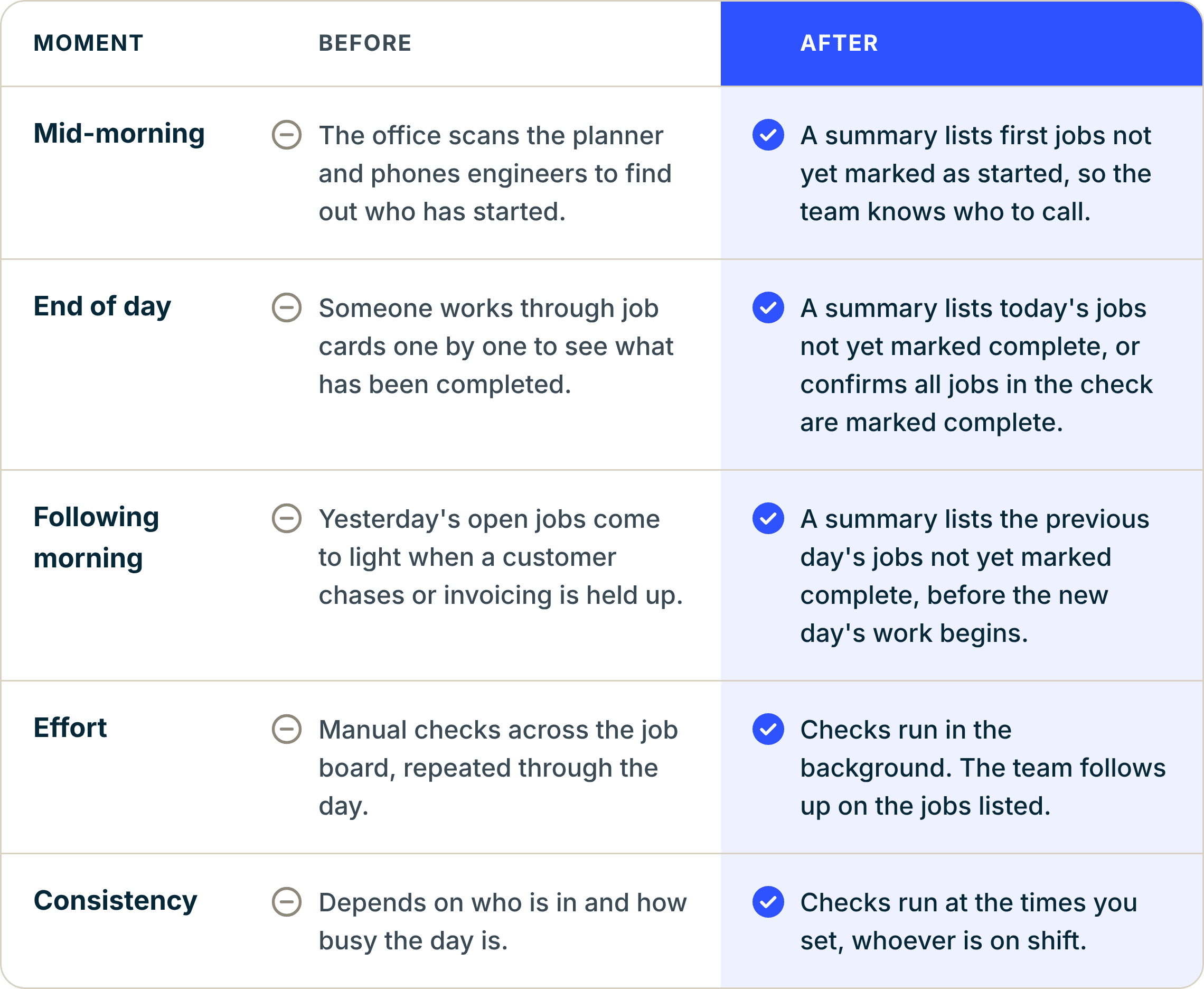
- Has every engineer started their first job? Finding out usually means scanning the planner and phoning the engineers who have not updated their status.
- Has today's work been completed? At the end of the day, someone works through job cards one by one to see what is finished and what is not.
- Was anything left open yesterday? Unfinished jobs from the day before often come to light only when a customer chases, or when invoicing is held up.
Each check takes time away from the work the office team is there to do: scheduling, customer updates and keeping jobs moving. On a busy day, the checks are often the first thing to slip, and issues can reach the customer before they reach your team.
How job status checks work
Build Concierge connects to your job management system (such as BigChange, Simpro or JobLogic) and reviews the status recorded against each job. What it checks, what it flags and when it runs all depend on your requirements.
- Your requirements set the rules. The jobs included (all jobs, or specific teams, regions or job types), the status criteria that count as needing attention and the check times are all agreed with you during set-up.
- Each check runs in the background. At each agreed time, Build Concierge reviews the jobs included and picks out those that meet your criteria.
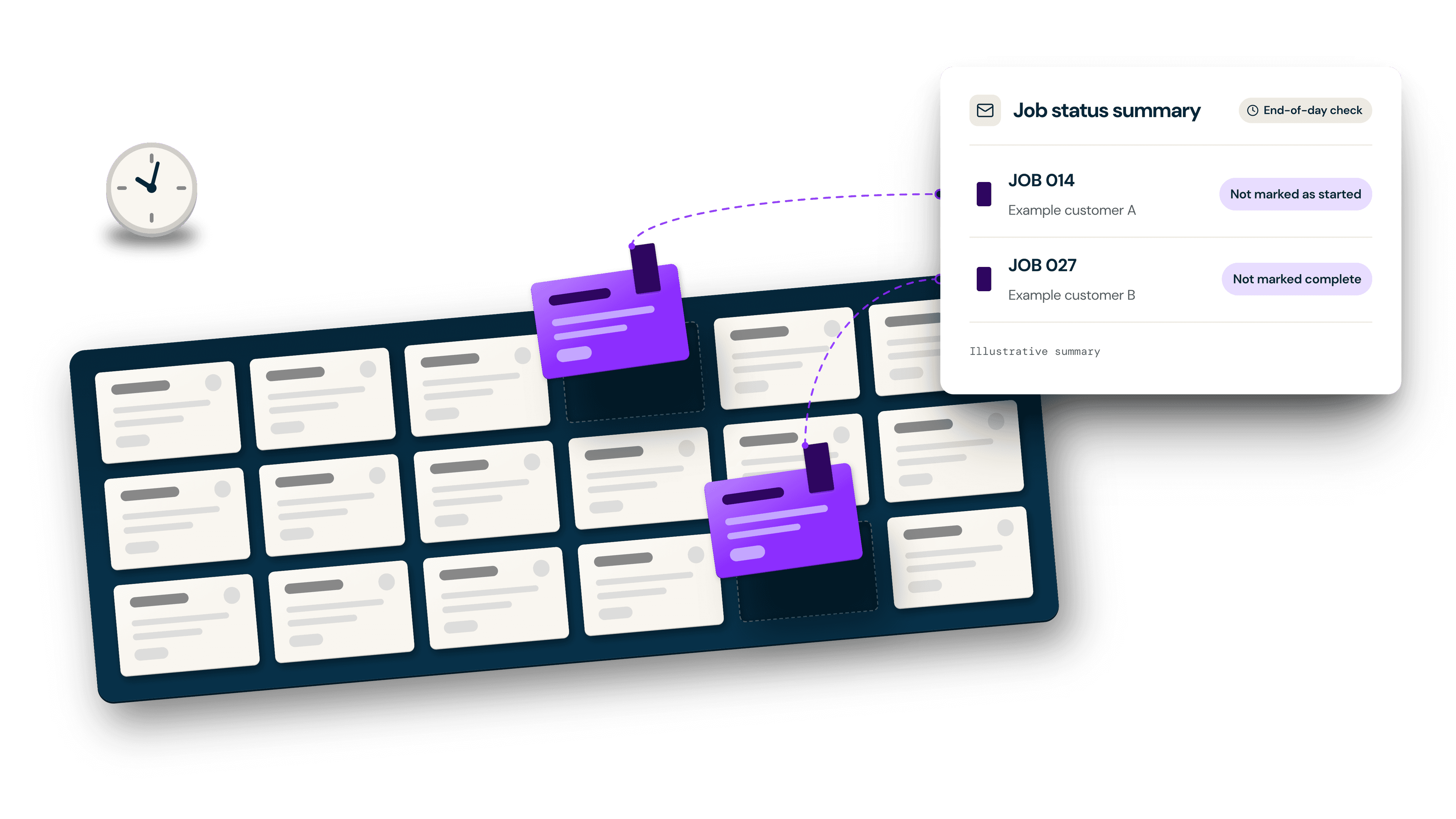
- Your team receives a summary by email after each check. It goes to the people or shared inbox you choose and lists each flagged job's reference, the customer and its current status. AI turns the raw job data into a clear, readable list.
- Your team decides what happens next. That might be a call to the engineer, an update to the customer or a note on the job.
The checks read the status recorded in your job management system, not what is happening on site. A job not yet marked as started may simply not have been updated, so each summary shows your team where to follow up.
One possible configuration
Every set-up is agreed with the customer. Some of our customers use the configuration below, which checks progress at three points: mid-morning, end of day and the following morning.
- Mid-morning: are the day's first jobs marked as started? The summary lists each engineer's first job of the day that is not yet marked as started.
- End of day: are today's jobs marked complete? The summary lists today's scheduled jobs that are not yet marked complete, and confirms when all jobs included in the check are marked complete. Read more about the end-of-day check.
- Following morning: is anything from the previous day still open? The summary lists the previous day's jobs that are not yet marked complete, so they can be picked up before the new day's work begins.
Your own configuration may use different times, different jobs or different status criteria, depending on what your team needs to see.
A day with job status checks
Illustrative example based on one possible configuration (mid-morning, end of day and the following morning), not on a specific customer.
Mid-morning.
The summary lists two first jobs not yet marked as started. One engineer is already on site but has not updated the job; a quick call confirms this and the status is updated. The other engineer has been held up on the road, so the team lets the customer know.
End of day.
The summary lists two jobs not yet marked complete. On the first, the engineer is waiting on a part, so the team adds a note and arranges a return visit. The second was finished but not closed, so the team asks the engineer to close it.
Following morning.
The summary lists one job from yesterday that is still open: the job awaiting a part. The return visit is already arranged, so nothing new is needed. The other job was closed the previous evening and no longer appears.
Each summary pointed the team to the jobs that needed a decision, without anyone searching the job board.
Less time checking, more time following up
What your team gets
- Time back for the office team
- Earlier sight of possible delays
- Same-day follow-up
- A consistent routine
Getting set up
Every set-up starts with a conversation about how your day runs and where checking takes the most time. From there, you agree four things with the Build Concierge team.
- What needs attention.
Which jobs are included (all jobs, or specific teams, regions or job types) and which statuses should be flagged at each check, for example a first job not yet marked as started, or a job not yet marked complete by the end of the day.
- When the checks run.
The times that suit your working day, whether that is a single end-of-day check or several checks across the day.
- Who receives each summary.
One company-wide summary, or separate summaries by team, region or job type, sent to the people you choose.
- How you will test it.
The checks run alongside your current process first, so you can confirm they flag the right jobs before you rely on them.
Already a Build Concierge customer? Job status checks run alongside the workflows you already have. Speak to your Concierge Support team to get started.
New to Build Concierge? We will show you how the checks would work with your jobs, your statuses and your team.
Common Questions
You do. During set-up, you agree with the Build Concierge team which jobs are included and which statuses count as needing attention at each check.
At the times you agree during set-up. Some customers run a single end-of-day check; others add checks earlier in the day or first thing the following morning.
The people you choose. You can have one company-wide summary, or separate summaries by team, region or job type.
By email, after each check. You choose where each summary goes: named people, a shared inbox such as your operations mailbox, or both. You can receive one company-wide summary, or separate summaries by team, region or job type, so each team sees the jobs relevant to it. Each email lists every flagged job's reference, the customer and its current status. When all jobs included in the end-of-day check are marked complete, the summary says so.
The end-of-day summary confirms when all jobs included in the check are marked complete, so your team knows the check has run. The all-clear covers only the jobs in that check, not every open task across the business.
Not always. The checks read the status recorded in your job management system. An engineer may be on site but not yet have updated the job, so the summary shows your team where to follow up.
No. Job status checks work alongside your connected job management system. Build Concierge connects with leading job management systems, including BigChange. If you are unsure whether yours is supported, ask us.
No. The checks list the jobs to follow up. Your team decides what happens next.
A new way to run the day
Job status checks turn a manual routine into a short summary after each check, at the times that suit your business. Your team follows up on the jobs each summary lists and spends less of the day checking.
More from the knowledge centre
Check job card quality and flag what needs attention
Give your managers a clearer view of job card quality. Build Concierge reviews descriptions, photos, standards and materials, records the findings and flags gaps to the people who can act on them.

Turn further works on job cards into quotes for review
Your engineers have already found the work. Build Concierge checks their job cards, prepares clear quote wording and records the next action, so your team can review, price and follow up.

Start subcontractor allocation from client emails automatically
Give your office team time back. Build Concierge reads client instructions, requests availability from your assigned subcontractors and routes replies to the right person.

Confirm appointments by SMS and update the job automatically
Give your office team time back. Confirm appointments by SMS, automated calls from Build Concierge’s AI Receptionist, or both.

Automatically raise off-hires & notify your transport team
A customer emails to end a hire. Build Concierge finds the right contract, raises the off-hire, sets the contract end date and sends the collection details to your transport team. Your team arranges the collection and keeps control of the diary.

Enquiries and web forms logged as sales opportunities
Turn enquiries from website forms, lead platforms and email into sales opportunities in your job management system, with customer details captured and the right person alerted.

Check job card quality and flag what needs attention
Give your managers a clearer view of job card quality. Build Concierge reviews descriptions, photos, standards and materials, records the findings and flags gaps to the people who can act on them.
Turn further works on job cards into quotes for review
Your engineers have already found the work. Build Concierge checks their job cards, prepares clear quote wording and records the next action, so your team can review, price and follow up.
Start subcontractor allocation from client emails automatically
Give your office team time back. Build Concierge reads client instructions, requests availability from your assigned subcontractors and routes replies to the right person.
Confirm appointments by SMS and update the job automatically
Give your office team time back. Confirm appointments by SMS, automated calls from Build Concierge’s AI Receptionist, or both.
Automatically raise off-hires & notify your transport team
A customer emails to end a hire. Build Concierge finds the right contract, raises the off-hire, sets the contract end date and sends the collection details to your transport team. Your team arranges the collection and keeps control of the diary.
Enquiries and web forms logged as sales opportunities
Turn enquiries from website forms, lead platforms and email into sales opportunities in your job management system, with customer details captured and the right person alerted.
Check job card quality and flag what needs attention
Give your managers a clearer view of job card quality. Build Concierge reviews descriptions, photos, standards and materials, records the findings and flags gaps to the people who can act on them.
Turn further works on job cards into quotes for review
Your engineers have already found the work. Build Concierge checks their job cards, prepares clear quote wording and records the next action, so your team can review, price and follow up.
Start subcontractor allocation from client emails automatically
Give your office team time back. Build Concierge reads client instructions, requests availability from your assigned subcontractors and routes replies to the right person.
Confirm appointments by SMS and update the job automatically
Give your office team time back. Confirm appointments by SMS, automated calls from Build Concierge’s AI Receptionist, or both.
Automatically raise off-hires & notify your transport team
A customer emails to end a hire. Build Concierge finds the right contract, raises the off-hire, sets the contract end date and sends the collection details to your transport team. Your team arranges the collection and keeps control of the diary.
Enquiries and web forms logged as sales opportunities
Turn enquiries from website forms, lead platforms and email into sales opportunities in your job management system, with customer details captured and the right person alerted.