
Check completed jobs and send invoices to the right contact


In short
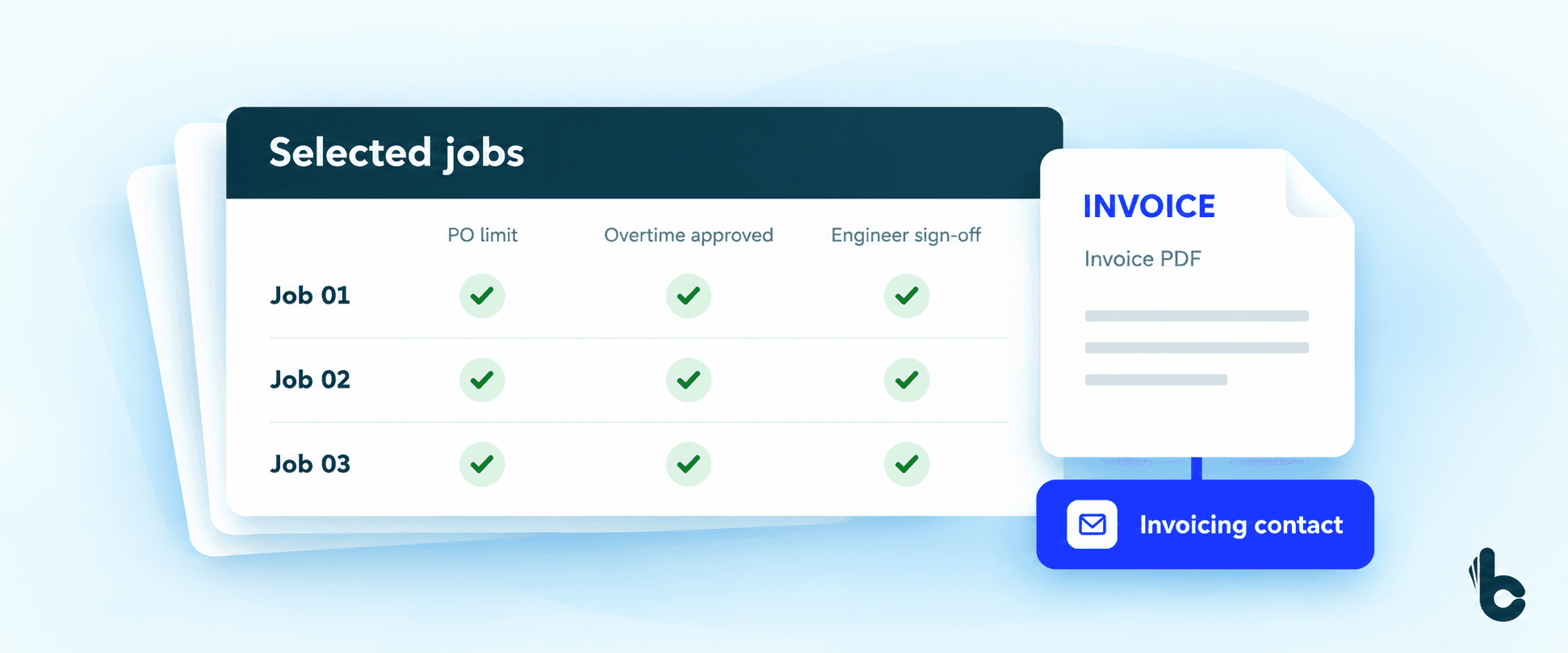
Build Concierge automates the checks between a completed job and its invoice. Your team flags the jobs to review. The workflow checks them against your agreed billing rules, raises invoices for those that pass and emails the PDFs to the designated invoicing contacts held in your job management system.
Why completed jobs wait to be invoiced
The engineer has finished. The job is complete. Your finance team still has a series of questions to answer before it can send the invoice.
Was the overtime agreed? Have the charges stayed within the purchase order? Is the engineer’s completion sign-off recorded?
Multiply those checks across a day or a week of jobs and the billing run becomes a job in itself.
Then someone has to find the right person to receive each invoice. Sending it to a general address can leave finance chasing a document that never reached the customer’s accounts team.
Build Concierge brings the agreed checks, invoice creation and delivery into one workflow, so completed work can move towards billing with less repeated handling.
How automated job invoicing works
- Your team selects the jobs. Filter the completed work you want to bill, select the batch and apply the flag that starts the workflow.
- Build Concierge checks each job. The conditions follow your billing rules. These might include approved overtime, purchase order limits and engineer completion sign-off.
- Jobs that pass are invoiced. The invoice is raised against the job once the configured checks are satisfied.
- The invoicing contact is identified. Build Concierge looks at the contacts held against that customer for the person designated to receive invoices.
- The invoice is emailed. The relevant contact receives the invoice with its PDF attached. If no invoicing contact is recorded, the workflow sends the invoice to your sales team for follow-up.
Your team chooses what enters the run. You also agree the checks and the process for resolving jobs that do not meet them.
One batch with consistent checks
Imagine selecting the previous day’s completed jobs. Some are straightforward. Others include overtime or work against a purchase order limit.
The workflow applies the agreed checks to each selected job. Jobs that satisfy them proceed to invoicing and delivery, while your team follows the agreed review process for anything that cannot proceed.
The checks in this example are illustrative and are configured around your contracts.
What changes for your business
- Less time reopening jobs for routine checks.
Your finance team can put a selected batch through the same agreed review without repeating every step manually.
- Billing conditions are applied consistently.
The workflow checks the criteria you define before raising an invoice, helping reduce avoidable queries caused by missing approvals or incomplete records.
- Invoices reach the recorded billing contact.
Delivery uses the person designated to receive invoices for that customer, helping reduce manual forwarding and address searches.
- Your team keeps control of the run.
You choose the jobs to put forward and the conditions they must meet.
The practical benefit is a shorter administrative gap between finishing the work and sending a checked invoice. Your team has more time to deal with the jobs that need investigation.
What you need to get started
You need:
- A connected job management system that supports the workflow.
- Clearly defined billing checks.
- The job data needed to run those checks, including relevant approvals and completion records.
- Invoicing contacts identified against customer accounts.
- Your invoice template and agreed fallback delivery process.
The checks can only use the information available to them. Reviewing where approvals and sign-offs are recorded is part of getting the workflow ready.
Test it against your billing process
1. Define what makes a job ready to bill. We work through your contracts and the checks your finance team already performs.
2. Agree delivery and exception handling. We establish how the invoicing contact is identified, where invoices go when one is missing and how jobs that cannot proceed will be reviewed.
3. Test before sending. Your team compares the workflow’s results with its normal checks before customer delivery is switched on.
A useful starting point is a sample containing both straightforward jobs and jobs your team would need to query.
Common Questions
No. Your team selects and flags the jobs to include. The configured checks then determine which selected jobs can proceed.
Yes. The rules are agreed around how you bill. Common examples include overtime approval, purchase order limits and completion sign-off.
It does not proceed through the successful invoicing route. During setup, agree and test how your team will identify, correct and resubmit those jobs.
It uses the contact designated to receive invoices on the customer’s record. Keep that information current.
In the workflow described here, the invoice is sent to your sales team for follow-up. Confirm the correct internal recipient during setup.
Yes. It works across the batch your team selects, checking each included job against the configured rules.
Put your next billing run to the test
Get in touch with the Build Concierge team and we’ll set it up around the way you work.
More from the knowledge centre


Your next customer is on your prospect list. What happens next?
Find the right prospects with Handshaik, then keep the conversation moving with Build Concierge. Together, they help you cut admin, follow up faster and turn more opportunities into customers.

Sensitive site issues, sent straight to the right people
Choose the sites and words that need special attention. When a completed job report or incoming email matches them, Build Concierge alerts the right managers with the details and a link to the job.

When your team can't answer, your Receptionist can
Calls answered, even when your whole team is already on the phone. When every line is busy, or a call rings without an answer, your Concierge Receptionist picks it up, follows the call handling process you choose and sends your team a clear summary. Urgent calls are flagged, so the most important call backs happen first.

Your next customer is on your prospect list. What happens next?
Find the right prospects with Handshaik, then keep the conversation moving with Build Concierge. Together, they help you cut admin, follow up faster and turn more opportunities into customers.
Sensitive site issues, sent straight to the right people
Choose the sites and words that need special attention. When a completed job report or incoming email matches them, Build Concierge alerts the right managers with the details and a link to the job.
When your team can't answer, your Receptionist can
Calls answered, even when your whole team is already on the phone. When every line is busy, or a call rings without an answer, your Concierge Receptionist picks it up, follows the call handling process you choose and sends your team a clear summary. Urgent calls are flagged, so the most important call backs happen first.
Your next customer is on your prospect list. What happens next?
Find the right prospects with Handshaik, then keep the conversation moving with Build Concierge. Together, they help you cut admin, follow up faster and turn more opportunities into customers.
Sensitive site issues, sent straight to the right people
Choose the sites and words that need special attention. When a completed job report or incoming email matches them, Build Concierge alerts the right managers with the details and a link to the job.
When your team can't answer, your Receptionist can
Calls answered, even when your whole team is already on the phone. When every line is busy, or a call rings without an answer, your Concierge Receptionist picks it up, follows the call handling process you choose and sends your team a clear summary. Urgent calls are flagged, so the most important call backs happen first.